Editing Flights#
Wingbeat does not guarantee regulatory compliance, and these docs aren’t legal or regulatory advice. Neither Dumm Software LLC nor Wingbeat takes any responsibility for, or makes any guarantee of, compliance with 14 CFR Part 135 or any other regulation or requirement. Where this page mentions a rule or an FAA interpretation, it’s only to explain how Wingbeat is meant to be used, based on our reading of it, which may be incomplete or wrong. Whether a flight was operated under Part 91 or Part 135, and whether it was paid, is for the operator to decide; the duty log's limits rely on it. The certificate holder and its pilots remain fully responsible for compliance, and for the accuracy and completeness of their records. Check against the regulations, your operations specifications and manual, and the FAA’s interpretations, and ask your FAA inspector when in doubt.
Admins can correct what the tracker recorded, add flights it missed, and set each flight’s aircraft, pilot and Part 91 status. Corrections show everywhere a flight appears: the dashboard’s flight list, analytics, maintenance hour estimates, the alerts and the Pilot Duty Log. The one exception is the recorded track on the map, which always shows where the aircraft actually went.
The flight editor#
Open it with Edit flights in the dashboard header (admins only), or from a pilot’s duty log, where it opens filtered to that pilot and month.
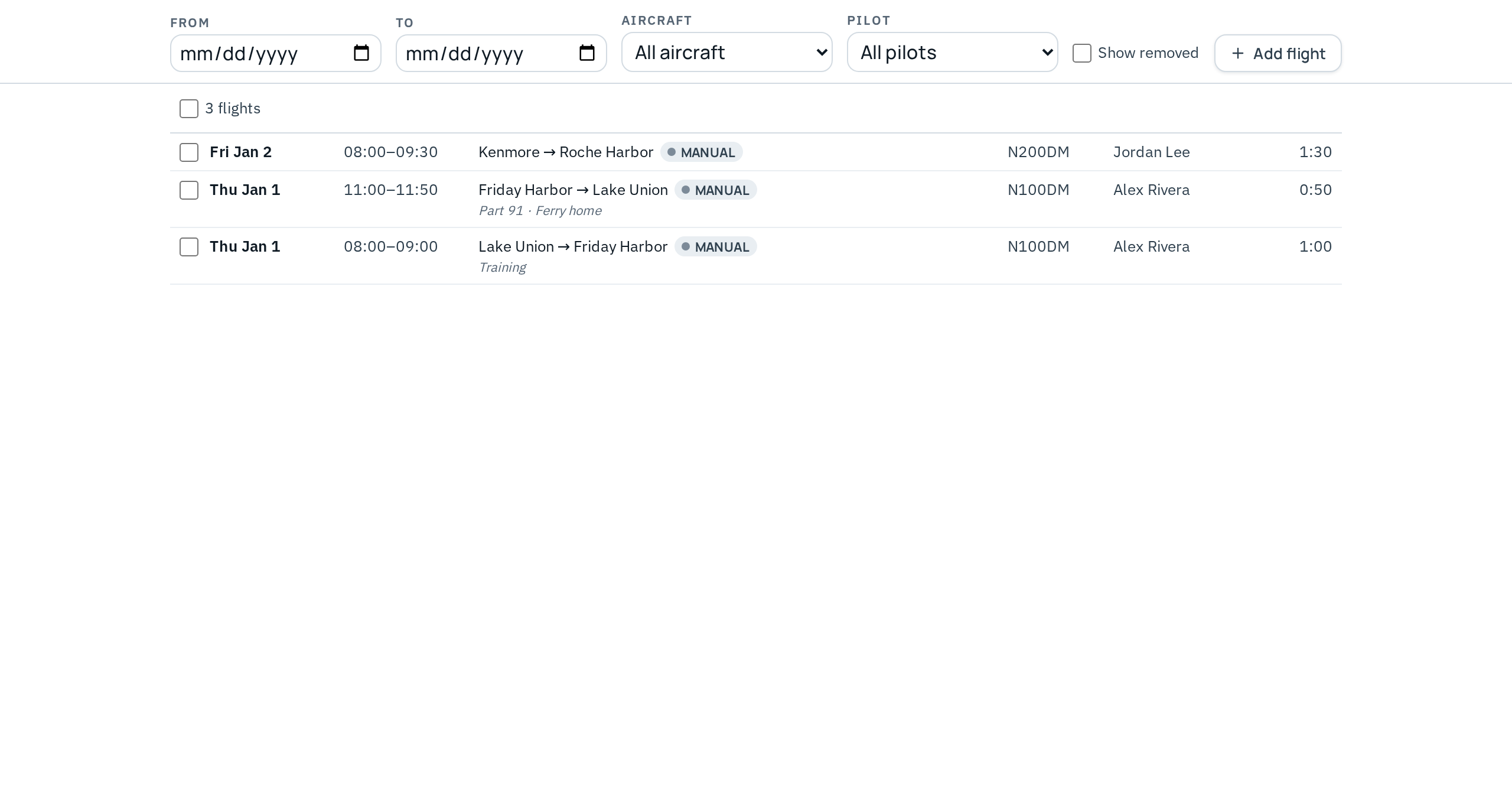
- Filters: From/To dates, aircraft and pilot. Show removed also lists removed flights, greyed.
- List: one row per flight with its date, departure–arrival, route, aircraft, pilot and flight time. Corrected values are marked †, with the tracker’s value on hover. Manual and removed flights are tagged, and a flight with remarks (Part 91, or a free-text remark) shows them underneath.
- Open a flight in the flight form by clicking its row (anywhere but the checkbox). Its date is a button, so with the keyboard, Tab to the date and press Enter or Space.
- Select flights with their checkboxes (or the checkbox at the top for every listed flight) to act on all of them at once from the bar at the bottom: Set aircraft…, Set pilot…, Part 91 / Part 135, and Remove / Restore.
- Add flight enters a manual flight.
The flight form#
The same form opens from the editor, from the pencil on the selected flight in the dashboard’s flight list, from an unassigned-flight alert, and from the pencil on a flight in the duty log.
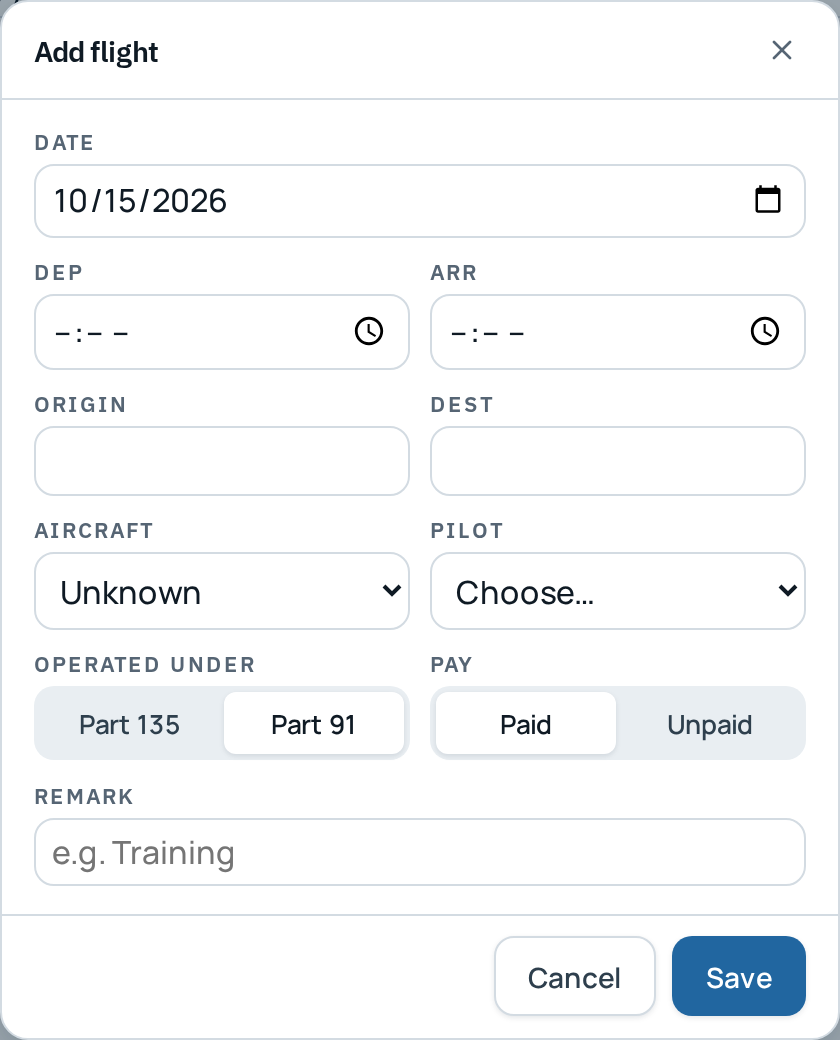
- Date, Dep, Arr: an arrival before the departure is taken as the next day, and the form says so under the times, e.g. “Arrives the next day, 1:10 after departure.” An arrival equal to the departure is the same day for a tracked flight (it took off and landed within the minute); a manual flight needs an arrival different from its departure. A flight over 12 hours is most likely a mistyped time, so saving one asks first (“This flight is 23:50 long, arriving the next day. Save it?”), and one over 24 hours can’t be saved. A tracked flight whose times are left as the tracker recorded them saves either way.
- Origin, Dest: type a place or pick one of your named points, up to 200 characters.
- Aircraft, Pilot.
- Operated under: Part 135 or Part 91, shown as a “Part 91” remark. Paid Part 91 flying counts toward the duty log’s limits as “other commercial flying”; see Pilot Duty Log.
- Pay (Part 91 only): Paid (the default) or Unpaid. Mark a flight unpaid only when the pilot genuinely wasn’t compensated for it, e.g. a personal flight; see when to mark a flight unpaid. An unpaid flight isn’t commercial flying, so the duty log leaves it out of the §135.267 limits, and its remark reads “Part 91 (unpaid)”. It still counts everywhere else, including aircraft hours and maintenance. Part 135 flights are always paid, so the choice only appears for Part 91, and setting a flight back to Part 135 (here or with the bulk Part 135 action) clears it.
- Remark: free text such as “Training”, shown under the flight, up to 200 characters.
The form shows who last changed the flight and when, e.g. “Last changed by Sam, Mon Oct 13 09:12.” For a tracked flight that includes changes to its aircraft or pilot, and the line says when that was the latest change: “Pilot last changed by …”, “Aircraft last changed by …” or “Aircraft and pilot last changed by …”. Every change is kept in an edit history that can’t be edited or deleted.
If someone else changes the flight (its corrections, or a tracked flight’s aircraft or pilot) while you have the form open, saving doesn’t overwrite their change. The form says “Changed by Sam since this was loaded (Mon Oct 13 09:12).” with a Reload button, which reopens the form with the flight’s current values (asking first if you’ve changed a field); make your change again from there. Revert to tracker and Delete are checked the same way. The form says so as soon as it opens if the page’s copy of the flight is already older than its latest change.
For a tracked flight, only the values that differ from the tracker’s are stored, and the tracker’s value is shown under each corrected field. Values the tracker is still filling in (a newly geocoded destination, for example) keep updating until you correct them.
The footer has:
- Remove from log (or Restore)
- Revert to tracker, which drops a tracked flight’s corrections, Part 91 and unpaid marks and remark
- Delete, for a manual flight
- Save
Pressing Escape or clicking outside the form closes it, but if you’ve changed a field it asks before discarding your changes.
Manual flights#
A manual flight is one the tracker didn’t record: the tracker was off, or the flying was done in another aircraft. It has its own times, places, aircraft and pilot, and is tagged “Manual” wherever it’s listed. With no track, selecting it in the flight list shows “No track recorded” instead of drawing anything.
Picking the origin or destination from your named points stores that point’s location, so analytics can count the flight in a region. Without one, its hours still count toward totals, under “Unknown location”.
Manual flights show in the flight list unless a tracker filter is set. The tracker filter has a Manual entries option to show just them.
Where corrections show up#
- Flight list and day view: corrected times, duration and route, with † marks. The day view still draws the full recorded track.
- Analytics: hours use corrected times; manual flights count, in their region when they have named-point endpoints.
- Maintenance: Hobbs and tach estimates use corrected times and include manual flights flown in a fleet aircraft.
- Alerts: the pilot duty alert uses the duty log’s §135.267 totals.
- Duty log: everything above, plus Part 91 and remarks.
Removed flights#
Remove from log hides a flight everywhere: the flight list, map, day view, analytics, maintenance and the duty log. The tracked flight’s data is kept, and it reappears in the flight editor with Show removed, where Restore brings it back.
Corrections that no longer match#
Corrections are tied to a tracked flight’s tracker and start time. When they no longer apply to any flight, the editor lists them as “Not found”, with what they would have changed, if they fall in its date range:
- The flight is gone: a history import changed when it starts, or the tracker’s points were wiped. The duty log shows the same “Not found” row only for the pilot of the same tracker’s nearest flight within 12 hours, usually the flight that replaced it. With no flight that close, the corrections show only in the editor.
- The tracker isn’t loaded: it was deleted or made inactive, so the page has none of its flights. The editor gives the reason, e.g. “tracker Hawk 1 was deleted”, “tracker Hawk 1 is inactive” or “tracker no longer exists”.
None of them are counted anywhere, so nothing is counted twice. Delete them and correct the flight again.